
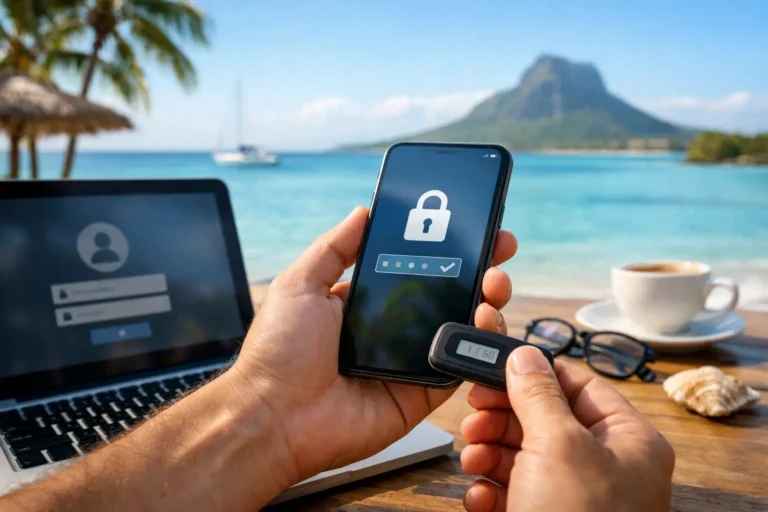
A stolen password should not be enough to take control of your business email, domain name, or hosting account. When you enable two factor authentication, you add a second proof of identity that stops most unauthorized login attempts, even if someone has obtained your password.
For a freelancer, startup, or small business, this is one of the highest-value security steps available. It takes only a few minutes to set up, costs little or nothing, and can prevent a serious disruption such as a redirected domain, deleted mailbox, or altered website files.
Why two factor authentication matters for your online presence
Passwords remain necessary, but they are routinely exposed through phishing messages, reused credentials from unrelated data breaches, malware, and simple guesswork. A strong password helps, but it cannot protect an account after someone else learns it.
Two factor authentication, often called 2FA or multi-factor authentication, requires something beyond the password. This is usually a temporary code from an authenticator app, a prompt on a trusted device, or a physical security key. An attacker who only has your password will be unable to complete the login.
The protection is especially valuable for accounts that control other services. Your primary email account can be used to reset passwords across your business. Your domain registrar account can affect where your website and email traffic go. Your hosting control panel can provide access to site files, databases, backups, and email settings.
Not every account carries the same risk, so prioritize the accounts that could cause the greatest damage if compromised. Start with your main email inbox, domain management account, hosting account, financial services, cloud storage, social media business profiles, and team communication tools.
How to enable two factor authentication on key accounts
The exact labels differ between providers, but the process is usually found under Account Settings, Security, Login and Security, or Multi-Factor Authentication. Sign in directly through the provider’s official website or app. Do not follow a security setup link from an unexpected email or text message.
Before turning on 2FA, make sure the account recovery email and phone number are current. Use an email address you control for recovery, not one tied to a former employee, developer, or agency. If your account has multiple administrators, confirm who has access and whether each person needs their own login.
Next, choose your verification method. Most services will show a QR code for an authenticator app. Open the app, scan the code, and enter the six-digit code it generates to confirm setup. The app will then produce a new code at short intervals whenever you need to sign in.
Once setup is complete, sign out and sign back in while you still have access to your password and the second factor. This simple test confirms that the method works before an urgent situation forces you to rely on it.
Start with email, domains, and hosting
Your email is usually the recovery channel for nearly every other account, making it the first place to secure. Use a unique password and 2FA for the mailbox that receives account notifications, invoices, domain renewal reminders, and password reset messages.
Then secure your domain account. Domain control is a high-value target because changing DNS records can redirect website visitors, interfere with email delivery, or send customers to a fraudulent page. Review contact details and account access while you are there. If a domain is critical to your business, avoid sharing one master login with several people.
Finally, protect your hosting account and any content management system administrator accounts. Hosting credentials may give an attacker access to your website, databases, and business email configuration. For WordPress or another CMS, enable 2FA for every administrator, not only the account used when the site was first created.
Choose the right 2FA method
Authenticator apps are often the best balance of security, convenience, and cost. They work without mobile signal, generate codes locally, and are less exposed to phone-number takeover than text messages. They are a practical choice for most individuals and small teams.
Security keys offer stronger protection against phishing. These small USB, NFC, or Bluetooth devices verify that you are signing in to the legitimate website rather than a convincing fake. They are particularly useful for domain, email, hosting, and financial accounts, as well as for administrators with access to many customer sites.
Text-message codes are better than using a password alone, especially if that is the only option a service offers. However, they are less desirable for critical accounts because phone numbers can be transferred fraudulently or intercepted in certain circumstances. Where possible, use an authenticator app or security key instead.
Push notifications can be convenient, but use them carefully. Never approve a sign-in request you did not initiate. Attackers sometimes send repeated prompts hoping a tired or distracted user will accept one. If your provider offers number matching, enable it.
For business continuity, choose a method that will still work if you lose your phone, change devices, travel, or need a trusted colleague to access a shared operational account. The right answer depends on your team size and risk level. A solo business owner may use an authenticator app plus stored recovery codes, while a growing business may issue security keys to administrators and maintain documented access procedures.
Protect recovery codes before you need them
Recovery codes are not a minor setup detail. They may be the only way back into an account if your phone is lost, damaged, or replaced. Treat them with the same care as a password.
Save recovery codes in a reputable password manager or another secure, access-controlled location. A printed copy in a locked physical location can also be useful for a business owner who needs an offline backup. Do not store codes in an unprotected notes app, an open spreadsheet, or an email draft.
If you use an authenticator app, check whether it supports secure backup or transfer to a new device. Understand the process before replacing your phone. For especially important accounts, register more than one authentication method, such as an authenticator app and a backup security key. That gives you a safe fallback without reducing day-to-day protection.
Avoid the common setup mistakes
The biggest mistake is enabling 2FA and assuming the job is finished. Security settings need occasional review, particularly after staff changes, a lost device, a website handover, or a change in who manages your domain and hosting.
Avoid these four problems:
- Reusing the same password across accounts. 2FA reduces risk, but unique passwords still matter.
- Sharing one administrator login among employees or contractors. Individual accounts make access easier to remove and actions easier to trace.
- Ignoring unexpected verification codes or approval prompts. They can indicate that someone knows your password.
- Leaving former staff, agencies, or developers with active administrator access after their work ends.
Be cautious with phishing pages as well. A fake login screen can ask for your password and 2FA code in real time, then immediately use both on the real service. Check the website address before signing in, and do not provide a verification code to anyone claiming to be support. Legitimate support teams do not need your current 2FA code to help you.
Make 2FA workable for your team
Security controls fail when they are too confusing to use consistently. Keep the process clear: every person should have a separate login, know how to approve legitimate sign-ins, and know where to report a lost device or suspicious prompt.
Document who owns critical accounts and who can recover them. This is particularly important when a website was initially built by an outside developer or when the business has grown from one person to a small team. Ownership of the domain, hosting, billing email, and recovery options should remain visible to the business owner.
At Raphus, account security is part of keeping your digital identity dependable. Pair 2FA with strong unique passwords, current contact information, and timely renewal management to reduce avoidable interruptions to your website and email.
If you receive an unexpected login alert, act quickly: change the password, review active sessions and recovery details, remove unknown devices, and contact the service provider through an official support channel. The best time to enable two factor authentication is before an account becomes a problem. Set it up on your most critical account today, store the recovery option safely, and move to the next account tomorrow.